[Tip] How to improve your design with built-in and custom images
-
SuuntoPlus already provides a large number of ready-made icons which are listed in the reference documentation within our editor. This guide is for those who want more!
First, we will go through the secret (currently undocumented) images which will allow you to get closer to a design in harmony with the wider ecosystem. After that, we talk about tips for when you’re using images you’ve made yourself.
The ‘‘secret’’ extra images
You have definitely seen screens similar to this:
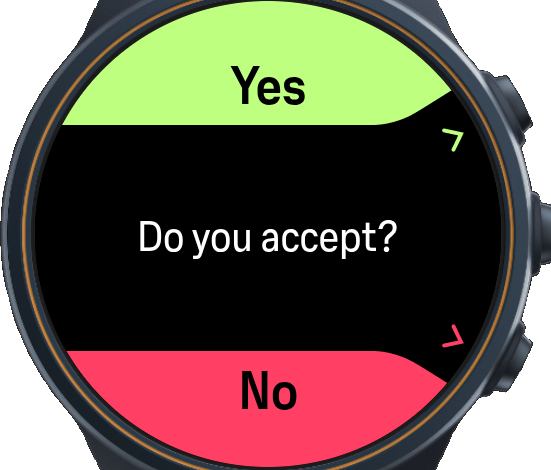
The HTML for that goes something like this:
<uiView><div>

    <div style="width: 100%; height: 50%; top: 0%; left: 0%;">
      <img src="btn-shape-top.png" class="c-lime" />
      <div class="f-t-l cm-fgc" style="top: calc(35% - 50%e); left: calc(50% - 50%e);">Yes</div>
    </div>
    <div style="width: 50px; height: 50px; top: calc(30% - 50%e); left: calc(90% - 50%e);">
      <img class="c-lime" src="hint-btn-top.png" />
    </div>

    <div class="p-m f-b-l">
      Do you accept?
    </div>

    <div style="width: 100%; height: 50%; top: calc(100% - 50%e); left: 0%;">
      <img src="btn-shape-btm.png" class="c-red" />
      <div class="f-t-l cm-fgc" style="top: 0%; left: calc(50% - 50%e);">No</div>
    </div>
    <div style="width: 50px; height: 50px; top: calc(72.5% - 50%e); left: calc(90% - 50%e);">
      <img class="c-red" src="hint-btn-bottom.png" />
    </div>

</div></uiView>
See those pngs? Those
btn-shape-top.png,hint-btn-top.png,btn-shape-btm.pngandhint-btn-bottom.png? All that and more can be found inside the extensions folder on your device. On Windows:%USERPROFILE%\.vscode\extensions\suunto.suuntoplus-editor-1.41.0\node_modules\@suunto-internal\suuntoplus-tools\image\qwhere
%USERPROFILE%automatically expands toC:\Usersfollowed by your username, your editor version may differ from1.41.0, and theqat the very end is the display id of our newest watches at the time of writing this.Likewise currently the documentation states that you cannot have more than 2 images per app. However, using these ones isn’t quite as strict; the above example uses 4!
Your own images
The reference documentation tells you how to add images. What may surprise you is how they show up on the watch compared to the simulator. The first tip is to be mindful of which type you choose in the
manifest.json!If you desire to use very detailed graphics, such as fine gradients, here’s the next tip for you: consider dithering. Here’s an example of a problematic image:
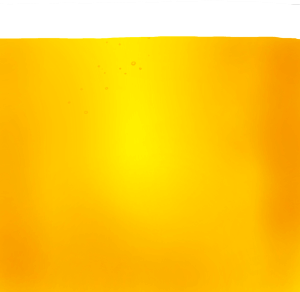
Deploying this image to your watch may introduce colour banding, which ruins the smoothness of the gradient. Here’s a version with reduced colours and dithering applied to it:
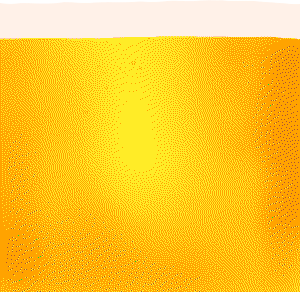
On a Suunto Race 1, for example, the difference is night and day – the latter image’s colours flow smoothly with no hard lines.
We do not endorse any particular tool, but the above image was improved using TURBO DITHER. You can play around with different algorithms, factors, scales and palettes to find the best solution for your situation. A custom palette derived from the original image is usually optimal.
Finally, remember that large images may be quite heavy for some watch models. The final size in bytes is dependent only on (1) which image type you choose in the manifest and (2) the resolution of the image.
The end
If you have any questions or tips related to the use of images or icons, please feel free to ask and discuss in this thread!

-
D Dimitrios Kanellopoulos pinned this topic on
-
@SuuntoPartnerTeam
Hi and thanks for the tutorial!
I tried importing my own image to the project and zooming in to a specific point in the image, but while it worked on the watch simulator, it did nothing on the watch itself.
I tried for example just changing the width and height within the style -field within an <img> object, but nothing happened on the watch.Is there a trick to zooming in to images or is it just broken?
Br. Saul R.
-
Hello @Saul-Revere,
you have hit one of those surprises listed in our other post simulator vs the real world. Unfortunately, there is no trick that we are aware of for zooming into images presently.
-
@SuuntoPartnerTeam Is there a way to sync images with the watch from the application? (see my post at https://forum.suunto.com/post/187059) Also do you have info regarding limitations (size, and so on) with images?
-
@guderaber There is no way to sync images. Also no information to share regarding limitations either, I’m afraid !
Hello! It looks like you're interested in this conversation, but you don't have an account yet.
Getting fed up of having to scroll through the same posts each visit? When you register for an account, you'll always come back to exactly where you were before, and choose to be notified of new replies (either via email, or push notification). You'll also be able to save bookmarks and upvote posts to show your appreciation to other community members.
With your input, this post could be even better 💗
Register Login