[Tip] How to save/load persistent data
-
Hi all!
This thread is for discussions on the use of the storage object in SuuntoPlus app development.The storage object allows you to save data as different variables, that you can later retrieve even during a different exercise. You can also edit the settings in the app and save them to make them appear in the Suunto mobile app.
Storage functions
To use the storage element, you need to make use of these functions via the localStorage object:
# Getters:
localStorage.getItem(key)
localStorage.getObject(key)

# Setters:
localStorage.setItem(key, value)
localStorage.setObject(key, value)
Where …Item refers to variables/settings saved as strings, and …Object refers to variables/settings saved as objects. In the function call parameters the key is the name of the data in your data.json file and value is the new value to be written over the old one.
Data.json
In order to use settings and variables, you need a data.json -file in your file tree. To add this file, just right click the explorer area where your other files (manifest.json, main.js…) are and select new file and name it data.json.
The contents of the file are within curly brackets { }, and they contain the keys and values of your variables/settings. For example, in the Settings example app, the data.json file looks like this:{ "appSettings": { "toggleSound": true, "selectedSound": { "availableSounds": [ "Button", "Confirm", "Info", "Interval", "StartTimer", "StopTimer" ], "sound": 0 } } }Here the data.json file contains one object: appSettings that has two fields.
- One is a field named toggleSound that is defined as a boolean and given an initial value of true.
- The other is an another object named selectedSound that contains a collection of strings and a field with an integer type value.
Manifest.json
Finally you also need to tie your variables and settings to your manifest.json file. They both need to be separately defined in the manifest file under the headers variables and settings. These are collections containing the information of your data defined in your data.json file.
Mandatory information is the shownName, path and type.
- shownName is the name of the variable/setting shown to the user in the Suunto mobile app.
- path is the path to your variable/setting within the data.json file. (If your data is not within an object, the name (key) of the data is sufficient)
- type options for settings and variables are int, float, string and boolean, with settings also having the option enum. For settings, there are additional fields depending on the type, which can be found explained in the Suuntoplus Reference documentation.
In the Settings example app, this part of the manifest.json file looks like this:
"settings": [
    {"shownName": "Start muted", "path": "appSettings.toggleSound", "type": "boolean"},
    {"shownName": "Sound to test", "path": "appSettings.selectedSound.sound", "type": "enum", "valuePath": "appSettings.selectedSound.availableSounds"}
  ]
More Questions?
Just type your questions related to saving/loading persistent data in this thread and we, or someone from our amazing community, will try to help you.

You can also find more information under the “Sports app settings” header in the SuuntoPlus Reference documentation in your editor.
-
D Dimitrios Kanellopoulos pinned this topic on
-
@SuuntoPartnerTeam first of all thanks for opening the S+, much appreciated! I’m trying to add settings that could be changed on the Suunto Mobile App but I’m a bit lost. I created a
data.jsonfile with the example content above and added settings to the manifest. However when I try to accesslocalStorageonmain.jsit seems to null.Also, is there a simulator for the Mobile App to see the settings over there?
Bonus question as I have your attention, is there anything like
console.logfor debugging? I’m using a text area on the watch now but hoping there is a better way to debugThanks!
-
@tonyfi Hi, and thank you for the great questions!
If you have created your data.json as shown in this thread, make sure to access your settings using the localStorage.getObject() -function
To access all the values in the example use:localStorage.getObject("appSettings");You can save this object as a variable and access the individual fields from there.
As for your second question: there currently isn’t a way to simulate the settings on the Suunto mobile app.
 The only way to verify that your settings work, is to get your feature uploaded to the SuuntoPlus store and then editing the uploaded project as you test your changes.
Br. SuuntoPartnerTeam
Edit. Removed incorrect statement on logging
-
@tonyfi said in [Tip] How to save/load persistent data:
Bonus question as I have your attention, is there anything like
console.logfor debugging? I’m using a text area on the watch now but hoping there is a better way to debugThere’s
systemEventfunction, for example:systemEvent('Testing testing ', 42); -
@Raimo-Järvi Thank you for the correction!
systemEventonly recently appeared in the documentation, must’ve slipped the mind
-
I have the following value in data.json:
{
    "appSettings": {
        "minutes": null
    }
}
And the corresponding entry in the manifest:
{
      "shownName": "Checkpoint Minutes",
      "path": "appSettings.minutes",
      "type": "int",
      "min": 0,
      "max": 59,
      "inputType": "slider"
    }
I have understood that this shows a slider where the user can choose the value.
I have the following questions:- I don´t want to have a preset value here. That’s why I put null in the data.json. How does it appear in the app settings screen?
- Which value do I get in main.js when the user does not have changed anything in the app settings and the values are loaded in the watch?
Null or 0?
Thanks you for your response.
Harry
-
@harry08 At first:
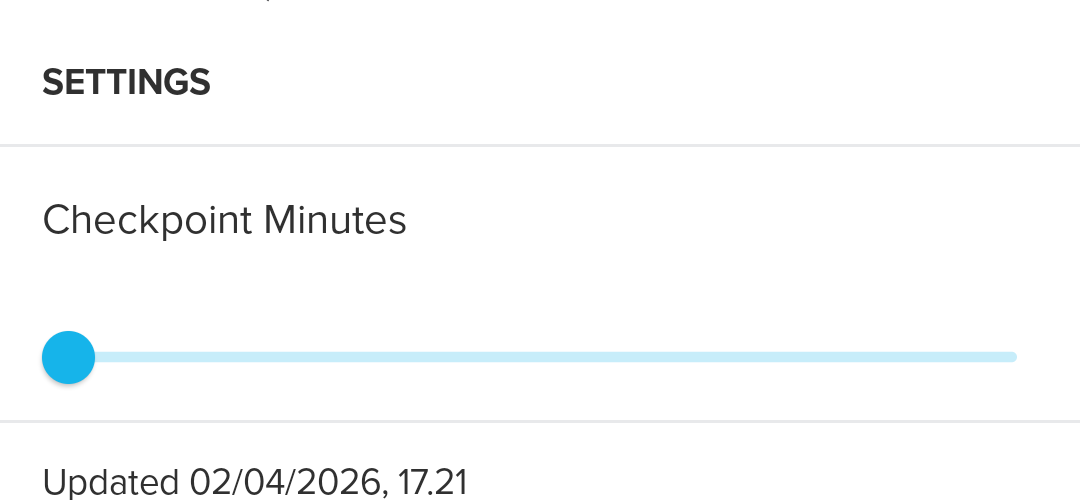
And it allows sliding:
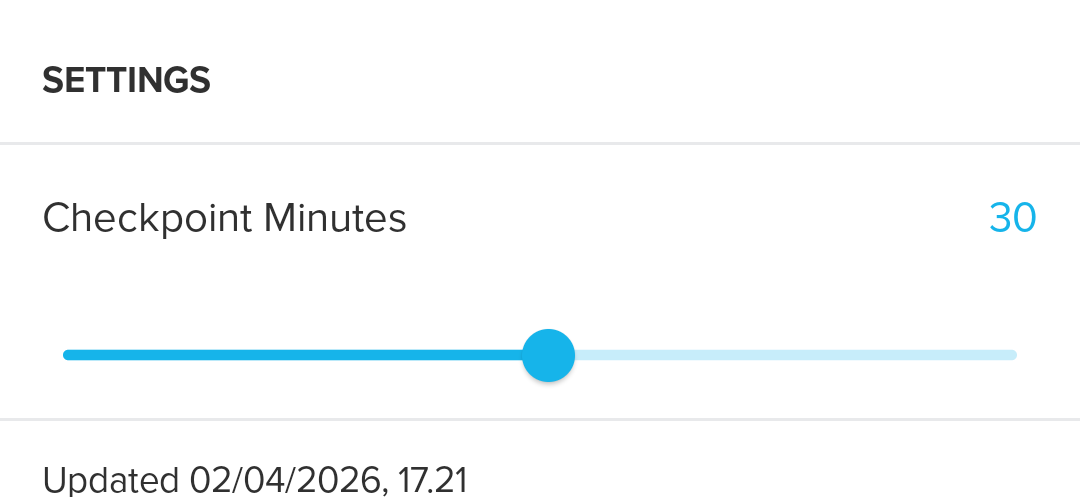
The value is null until the user touches the slider and syncs.
-
@SuuntoPartnerTeam
Thanks. Exactly what I have expected. -
Hello!
I’m currently developing an app and own a Suunto 5 Peak watch to test my app. I have followed the manuals and examples, and everything works as expected, except that it looks like my app crashes (or glitches) as soon as it is uploaded to my watch.
After commenting out and uncommenting parts of the code, I discovered that it looks like localStorage is not available at all, so the settings cannot be loaded. My app heavily depends on being able to configure these settings.
So, what am I doing wrong? Why might localStorage be unavailable inside onLoad, and how should I access it to load my app’s settings?
Thank you!

Hello! It looks like you're interested in this conversation, but you don't have an account yet.
Getting fed up of having to scroll through the same posts each visit? When you register for an account, you'll always come back to exactly where you were before, and choose to be notified of new replies (either via email, or push notification). You'll also be able to save bookmarks and upvote posts to show your appreciation to other community members.
With your input, this post could be even better 💗
Register Login