Live location S+ app
-
It looks like the application can also download offline maps, but how do we actually use this feature?

-
Yep, it can sound odd to have offline maps for a live tracking app (since that means you probably should be online).
It’s not a game-changer feature, but it can still be really helpful for things like:
-
Reducing traffic and battery usage: Transmitting a live data package is fast even on a low-end connection, but downloading map tiles requires a much broader channel + battery consumption could be increased especially on bad network condition. Pre-downloading maps just helps free up your network channel so it doesn’t struggle with loading graphics.
-
Offline navigation: Sometimes your network goes offline, but your watch GPS is still fine. In those cases, it could be helpful to use the map on your larger smartphone screen to navigate, or looking around.
-
-
@Nikolai-Simonov If this feature can also help reduce the phone’s battery consumption, that would be amazing. Sometimes when we go deep into the forest, the phone keeps trying to search for a signal, which can drain the battery faster.
I really like this feature and I hope it continues to improve. Keep up the great work with the development!

-
Hello,
I’ve noticed that running a guided route simultaneously with the Suunto+ Live Tracking feature triggers frequent “off-route” alerts, even when I’m on the right path. -
@Antoine do you mean off-route alert on watch or in the live.t app?
so basically it shouldn’t intersect in any way, but it’s interesting observation i’l check what it could be.
-
@Nikolai-Simonov said in Live location S+ app:
@Antoine do you mean off-route alert on watch or in the live.t app?
so basically it shouldn’t intersect in any way, but it’s interesting observation i’l check what it could be.
It is off-route alert on watch.
I had these kind of alerts on several different routes (and using live.t app at the same time) -
@Antoine Hmm… looks quite odd and interesting, currently no idea how routes could intersect with the app… need to test by myself.
-
 B Brad_Olwin referenced this topic on
-
Hey everyone!
Lately, I’ve been working on a group walkie-talkie feature for Live.τ! (I believe someone asking about this.)
What is the feature?
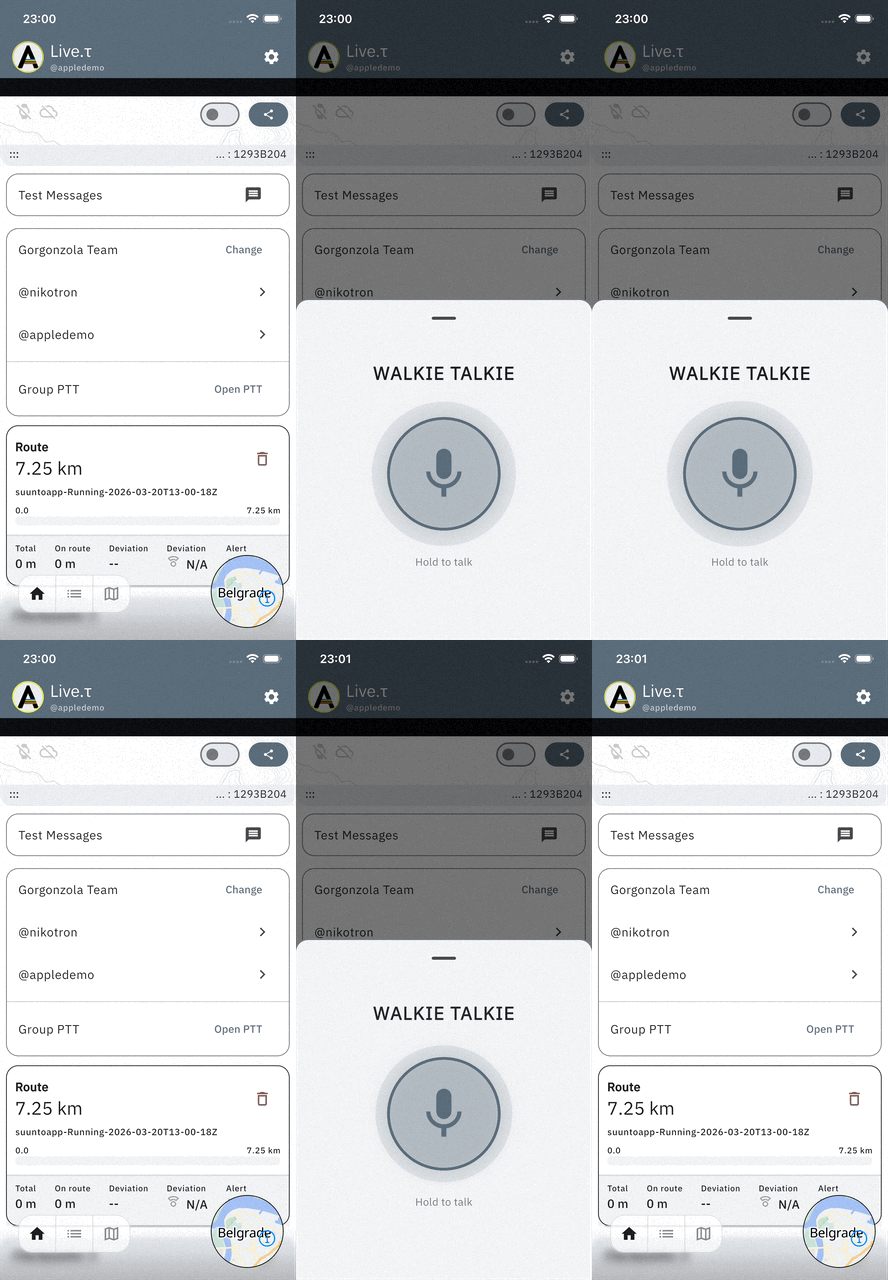
It’s the ability to exchange voice messages within a group. You can use your headphones (which is probably the most convenient way) or your smartphone like a traditional walkie-talkie. You will also be able to initiate PTT via your watch (this is currently in the works).
How does it work?
-
You need to have or be in a group. There is no minimum size, it can be just 1 person.
-
To create a group, you must have a verified email address. You can verify your email and create the group in your profile.
-
Go to
Settings->Lab->PTT in group sessionset to [on]. -
After that, you can use the walkie-talkie during any workout.
(Note: At the moment, if you are in a group, any workout is broadcast to all the groups you are a part of).
You can start speaking into the walkie-talkie in three ways:
-
App: Open the panel with the PTT (Push-To-Talk) button on your group card
-
Headphones: Use the play/pause button. Since we can’t capture a “press and release” action on headphones, the button acts as a toggle. One press gives you 15 seconds to speak. If you want to end the transmission early, just press it again.
-
Watch: Using a button on your watch, similar to the headphones. This isn’t implemented yet, but it will be available in the next watch update.
Your messages will be broadcast to everyone in your group, plus anyone watching your group via the web.
Where is it available?
It’s available starting from version1.0.16 (87):-
iOS: via TestFlight
-
Android: as an .apk file
This is an experimental and relatively complex feature, so there might be a few quirks. So and because of this, I’m really looking forward to feedback from anyone who wants to try it out!
-
-
Can you help explain how to broadcast watch sensors to Zwift?
-
Hey @Speed-Man!
I don’t use Zwift myself, but I believe it’s pretty much the same as MyWhoosh.
So, basically:
- Pair your trainer to the watch.
- Enable Sensor Forwarding in the Lab settings.
- Choose a run or cycling activity.
- Enable the service and pair your watch as usual.
- Once the connection between the app and the watch is established, open the sensor search screen in MyWhoosh/Zwift/your other device.
- Search for the sensor. The naming might vary, it could show up as
SF-ATHL-...,Device-XXX, or maybe your phone’s name. The main thing is that the app recognizes it as a trainer or HR monitor.
-Connect to it.
Note: Data will only be broadcasted once you press the Start button on your watch, so your power, HR, and cadence will show as 0 until then.
It’s still in a really early stage. It needs more testing and stabilization, and the UX definitely should be improved. But you can try it as-is, and any feedback would be really appreciated!
Suunto Race 2 Ti
Suunto Race
Suunto 9 BaroSuunto Aqua
Suunto Wings -
@Nikolai-Simonov Thank you very much, sir.
-
@Nikolai-Simonov yesterday I wanted to switch on Live location mid-activity.
I failed.
Thule the watch showed connected, the ios app (latest beta of today) always had an orange “waiting for S+” in the status and did not get a position from the watch.
It looked like this (ios):
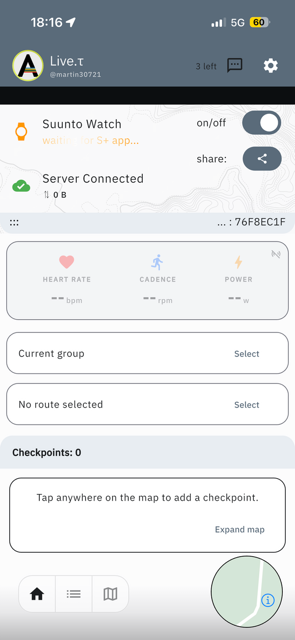
Is this supposed to work?
t6, S6, Elementum Terra, Ambit 3 Sapphire, Spartan Ultra Copper, Traverse Alpha, S7 Graphite LE, S9B Ambassador, S9P Titanium, S9PP Titanium, Vertical All Black, Race Titanium Charcoal, Race S Titanium Courtney, Run Lime, Race 2, Vertical 2 Titanium
-
@Egika
I already did that in the past, and in such case (with Android though), I switch off the app service, and switch on again, and it is fixing.
Maybe worth trying, as initial workaround. -
@Mff73 I switched everything multiple times. Switch in app on/off, force closed and restarted app, switched S+ on/off etc.
-
@Egika I had the same issue today trying to start a run - latest iOS app and latest Firmware Race 2.
-
@Egika thanx for report, if it possible could you check on previous versions e.g. 1.0.16 (83)
the behaviour is pretty odd,
basically mid-activity flow shouldn’t have any difference with regular flow.
I’ll try to figure out what could happen, there was an update in btle stack on iOS version, maybe it broke smth. however unfortunately i’ll be without my iPhone this week, will be able to check only next weekend.@larrybbaker could you also check on previous version if it possible.
Thanx for point out
Suunto Race 2 Ti
Suunto Race
Suunto 9 BaroSuunto Aqua
Suunto Wings -
@Egika I had the exact same issue 2 days ago. With the latest beta version, the watch connected but kept waiting for the Suunto Plus app – just like in your screenshots. It didn’t matter if I started the activity with tracking already enabled or if I started tracking during the activity; neither way worked. I then downgraded to the current stable version from the App Store, and everything worked perfectly again.
-
@tuxbuster thanx for confirmation of the issue, i’ve disconted the latest testflight. build for a while.

-
@Nikolai-Simonov Let us know if you need more info or anything else. Thanks for looking into this!

-
@Nikolai-Simonov said in Live location S+ app:
@Egika thanx for report, if it possible could you check on previous versions e.g. 1.0.16 (83)
the behaviour is pretty odd,
basically mid-activity flow shouldn’t have any difference with regular flow.
I’ll try to figure out what could happen, there was an update in btle stack on iOS version, maybe it broke smth. however unfortunately i’ll be without my iPhone this week, will be able to check only next weekend.@larrybbaker could you also check on previous version if it possible.
Thanx for point out
I installed 1.0.16 (83).
Unfortunately this version crashes repeatedly when trying to start the app. No way to start it.
iPhone 16, iOS 26.5 betaEdit: (85) is working.






Hello! It looks like you're interested in this conversation, but you don't have an account yet.
Getting fed up of having to scroll through the same posts each visit? When you register for an account, you'll always come back to exactly where you were before, and choose to be notified of new replies (either via email, or push notification). You'll also be able to save bookmarks and upvote posts to show your appreciation to other community members.
With your input, this post could be even better 💗
Register Login